
This tech tip refers to a feature in versions prior to 3.15. The Auto-Logout Time has since been replaced with the Session Clock which is an application level preference.
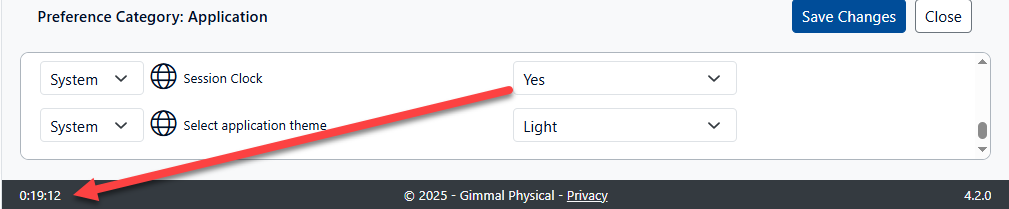
Note: The actual timeout duration for the Session Clock can only be enabled when the system is updated via a change to the web configuration file. For Cloud customers, this is typically performed only during an upgrade.
To enhance security and prevent unauthorized access, Gimmal Physical includes an Auto-Logout Timer that displays the remaining time before automatic logout. This feature helps ensure that inactive sessions do not remain open, protecting sensitive records and improving system security.
How the Auto-Logout Timer Works
The Auto-Logout Timer is now included in the latest versions of Gimmal Physical. It actively counts down the time left before a session automatically logs out due to inactivity. The timer is:
-
Configurable: The timeout duration is a system-wide setting that can be adjusted by Gimmal or your IT team if running Gimmal Physical on-premises.
-
Visible: Users can monitor the countdown timer to avoid unexpected logouts.
-
Resettable: To extend your session, simply interact with the application by clicking any button or entering data anywhere.

What Happens if You Timeout?
If no action is taken before the timer expires, Gimmal Physical will automatically log out the user. A message will appear notifying you that the session has timed out, requiring you to log in again to continue working.
By keeping track of the Auto-Logout Timer, users can prevent unexpected logouts and maintain workflow efficiency while ensuring system security.
Don’t hesitate to contact support if you have any questions.
First published February, 2025