
Automatic notifications can be set up in Gimmal Physical to alert designated recipients to certain activities within the application. Setting up these notifications is a straightforward process for your Gimmal Physical Administrator.
Select Admin from the top menu ribbon.
-
Select Configuration->Notifications.
-
Click the Add Notification button (upper right).

-
Select the Event* and desired recipients from the drop-down menus and click Save.

*Adding a new Notification Event
If your desired notification event is not available, you can create a new one.
-
On the Configure Notifications screen, click Add Notification Event.

-
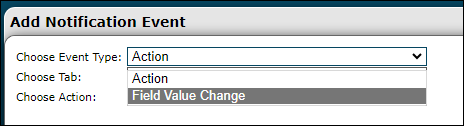
Select the appropriate Event Type from the dropdown: Action or Field Value Change. The remaining options will update based on your selection.
-
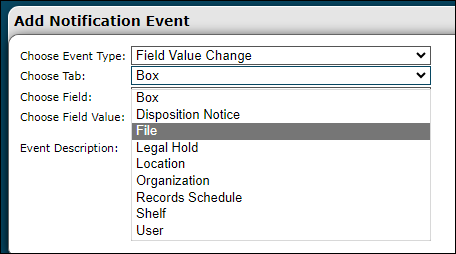
Select the Tab this notification should apply to, e.g., Box, Folder, Shelves, etc.
-
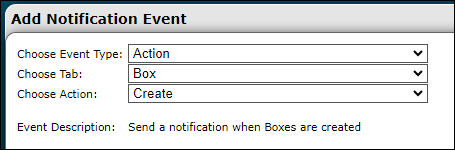
For Event Type Action - Select the Action that triggers this notification.
-
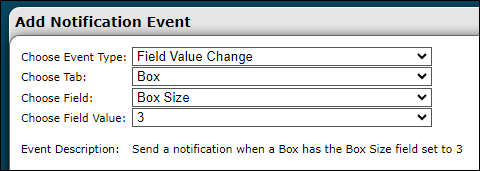
For Event Type Field Value Change - Choose the Field and Field Value that will trigger this notification. When this Event Type is selected, changing the Tab will cause the values in the Field drop-down to change.
-
Click Save.